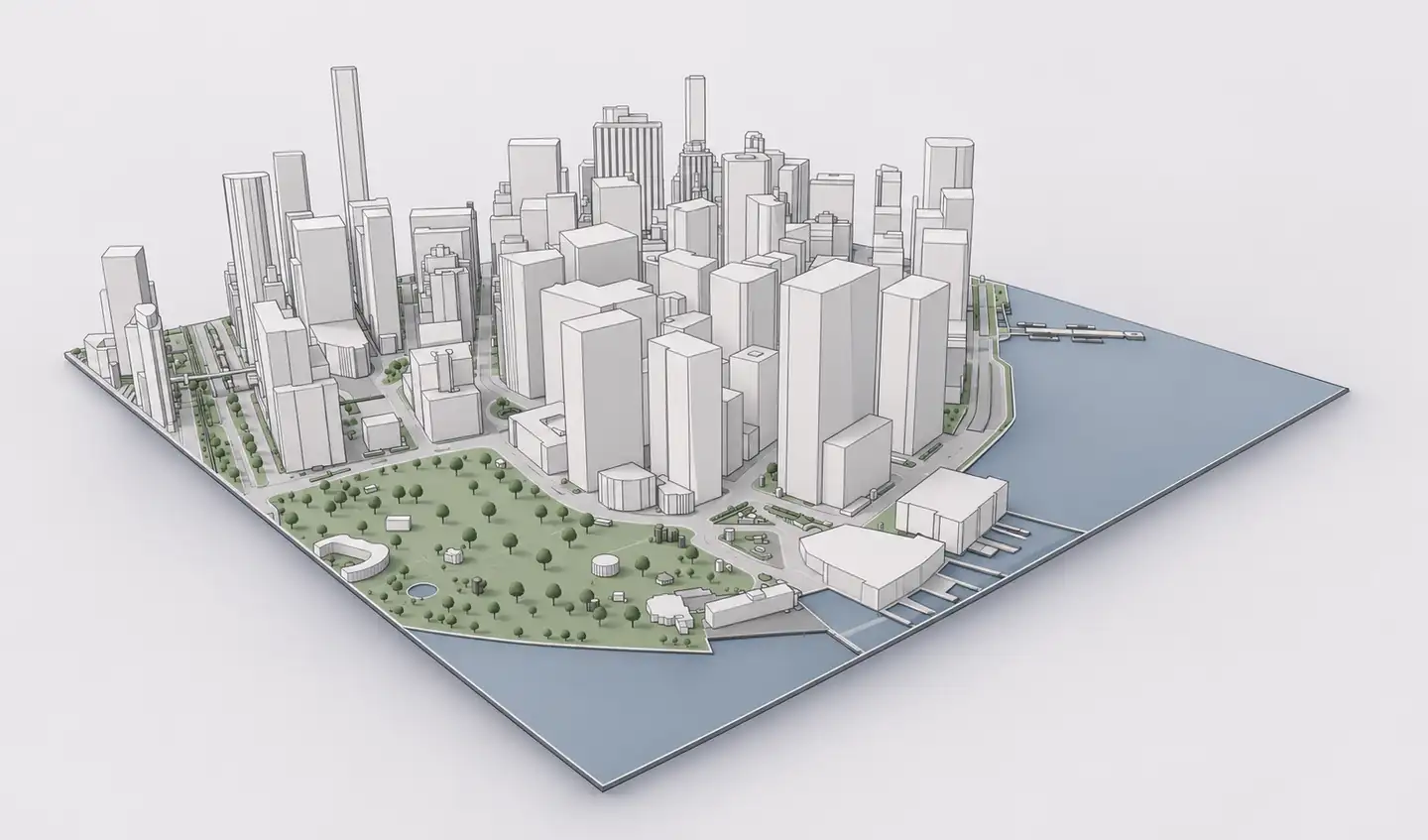
Archicad 3D site context
Importing an IFC file is not only about selecting the right menu command. To use a 3D context model in Archicad, you also need the right IFC translator, a sensible project origin, reliable units and clear separation between proposed BIM elements and existing reference geometry. This guide explains the three standard Archicad import workflows, what each is for, and how to prepare an Archshaper site model for a clean start.
Why use Archshaper?
Choose the right import method
Open for inspection in a new project, Merge for an existing project, or Hotlink for a managed reference.
Avoid positioning surprises
Check project origin, elevations, units and coordinate assumptions before coordinating your context.
Keep reference and design separate
Treat imported city geometry as existing conditions rather than automatically native building objects.
Four steps from map to Archicad
- Generate the IFC context
Search a location in Archshaper, review the 3D preview and select Archicad IFC4 when available.
- Choose an Archicad import method
Use File > Open, the version-specific IFC Merge workflow, or File > External Content > Place Hotlink.
- Configure the translator
Review geometry conversion, element filters, layers and classification options appropriate for reference context.
- Verify in 2D and 3D
Check scale, units, site levels, north, placement and imported object visibility before using the model.
Method 1 — Open an IFC4 file in a new Archicad project
Use Open when you want to inspect the IFC without introducing it into a working model. In Archicad, choose File > Open, select the IFC file type, select your file and choose a suitable IFC Translator for Import. Archicad creates a new project or file context based on the translation settings.
This is often the safest first check for a newly generated site model: review its coordinate system, objects, dimensions and completeness before integrating it with the design. Menu wording can differ between Archicad versions.
Method 2 — Merge IFC reference into the current model
Merge lets you bring an IFC model into an open Archicad project. Graphisoft documents Merge as available in Floor Plan view, using an IFC import translator from the current project. The imported content is part of the current project rather than a separate linked module.
Use a project backup and confirm the insertion settings and location before merging. In an established office workflow, avoid mixing generalized urban context with proposed BIM construction objects on the same organizational layers.
Method 3 — Hotlink an IFC4 reference model
Hotlink is useful when you want to maintain imported context as a managed external reference. Graphisoft documents File > External Content > Place Hotlink, then selecting an IFC file and a translator. Hotlinked content can be updated under the relevant Archicad procedures.
A linked context model is often easier to identify and coordinate when the design changes independently from the neighborhood model. Check whether your team's template and translator preserve the expected organization.
Troubleshooting: invisible, misplaced or oversized IFC geometry
If the IFC seems empty, verify the translator's model filter, the layer visibility and whether objects are far from the project origin. If scale is wrong, inspect units and the source model's extent. If terrain or city geometry appears fragmented, check the conversion and geometry settings; the source IFC and its representations affect what Archicad can reconstruct.
An imported IFC file is not guaranteed to generate fully editable native Walls, Roofs, Slabs or Mesh elements. Site models frequently work best as reference objects or generic context geometry. For accurate construction decisions, verify levels and dimensional information independently.
Frequently asked questions
Can Archicad import IFC4 files?
Yes. Archicad supports IFC import using Open, Merge and Hotlink, with translator settings controlling the result.
Should I open, merge or hotlink a site model?
Open to inspect separately; Merge when you want to add geometry to the active project; Hotlink when you need a managed external reference.
Why is my IFC model not visible in Archicad?
Check import filters, layers, 3D view settings, units and distance from the current project origin.
Will IFC4 terrain become Archicad Mesh?
Not automatically. Imported terrain generally needs further conversion or modelling to become a native editable Mesh.
What happens to object classes and layers?
The IFC file and your import translator determine how geometry, classifications and attributes are mapped.
Does Archshaper create IFC4 site context?
Archshaper offers an Archicad-labelled IFC4 export where the option is enabled. You can inspect the model in the browser first.