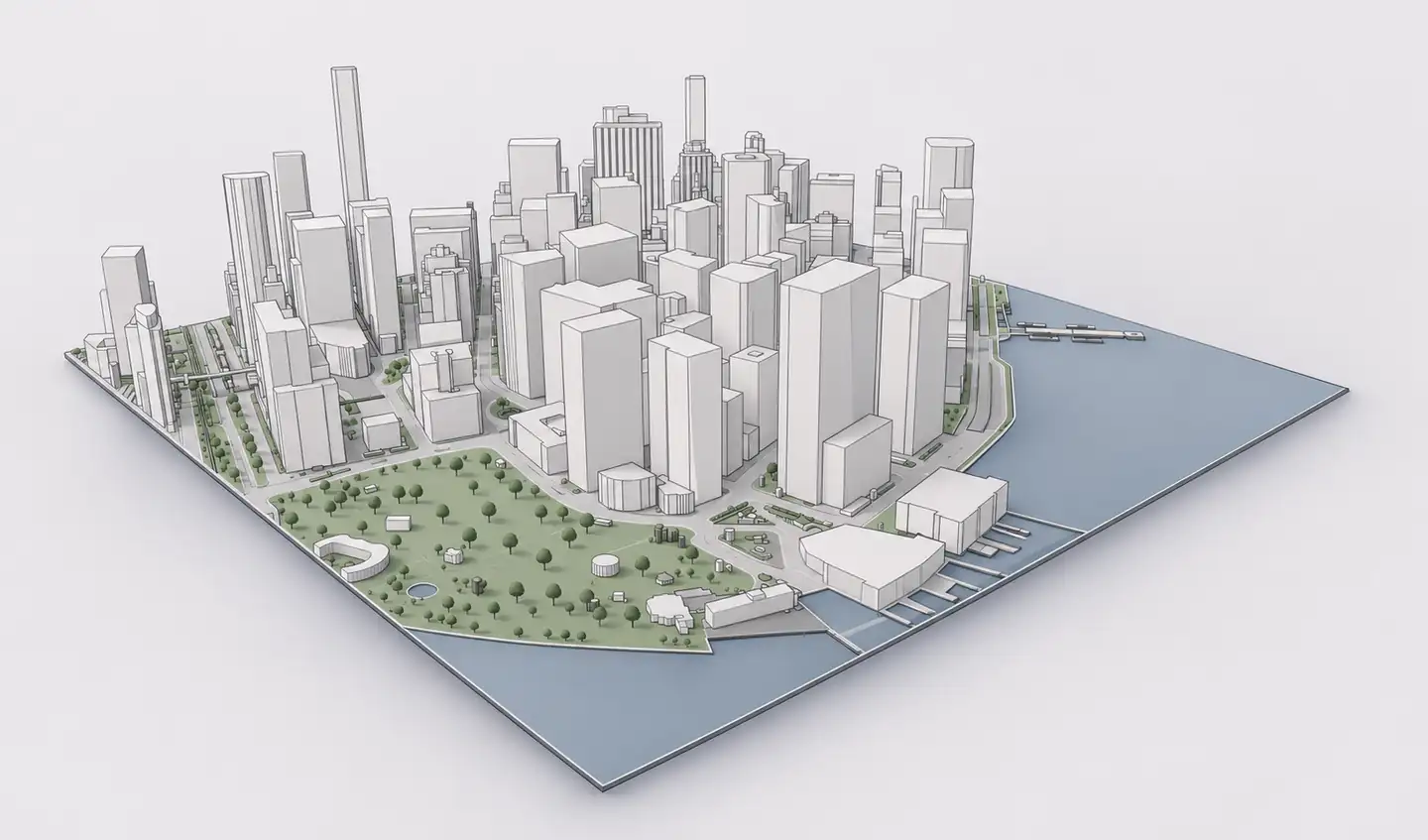
Surrounding buildings are essential for architectural scale, street relationships and early presentations. There are several ways to bring them into SketchUp: SketchUp's own Add Location features, public city-model datasets, GIS workflows or a purpose-built context generator such as Archshaper. The right approach depends on the level of detail you need and what geographic data exists for your site.
What you can do
Method 1: Archshaper
Select a real location, generate a site context model and examine the free 3D preview before exporting.
Method 2: SketchUp Add Location
Use SketchUp's built-in geolocation workflow; supported versions and locations can include terrain and 3D building context.
Method 3: Public GIS and OSM
Import building and geographic datasets through specialist tooling when you need greater data-level control.
Method 4: Manual modelling
Trace reference footprints and extrude buildings when source data is missing or you require a highly tailored approximation.
Method 1: Generate a model with Archshaper
- Find your location — Open the Archshaper 3D Map Generator and search for the project site.
- Set the context boundary — Choose the extent around the proposal and include the building and optional site layers you require.
- Review a free preview — Inspect the geographic coverage, building massing, terrain and optional layers.
- Download the model — Select an available export format and extract downloaded archives when applicable.
- Import and check alignment — Open SketchUp, select File → Import for a supported format, then verify units, location and orientation against your project.
Which format can SketchUp actually import?
For a native SKP export, open the file directly in SketchUp when that option has been enabled. For COLLADA DAE, use File → Import and select the DAE type. OBJ does not have the same universal native import support across SketchUp versions: you may need an extension or a conversion step. Follow the actual format provided by your Archshaper export.
After import, isolate the contextual geometry in groups or components and use SketchUp tags to control visibility. Avoid mixing your proposal geometry with imported building meshes.
Method 2: Try SketchUp Add Location
SketchUp provides a built-in Add Location workflow for geolocating a model and bringing in site data. Current capabilities can include terrain and 3D buildings depending on version, subscription and geographic coverage. Check the result at your location before assuming a third-party model is required.
Archshaper is useful when you prefer to preview a separately generated scene and choose the area and context layers before importing.
Keep large context models responsive
Start small and increase coverage only if the wider district matters. Simplified building masses are often sufficient for concept design; optional detailed trees and terrain increase geometry and file weight. Keep the context in a separate tagged group and hide it while detailed modelling is underway.
Check a familiar distance or building dimension after import, confirm the coordinate alignment and remove irrelevant geometry before making presentation scenes.
What if important buildings are missing?
Open map data has gaps. If a critical neighbor is absent, use a verified survey, municipal dataset or a manually built replacement. Do not invent precise building heights from a contextual model, particularly for daylight compliance or permit drawings.
Frequently asked questions
Can SketchUp automatically add nearby buildings?
Supported versions of Add Location can include 3D buildings where data is available. Archshaper offers a separate context-generation workflow.
How do I import a COLLADA DAE file?
In SketchUp Desktop, use File → Import, choose the COLLADA (.dae) format and select your file.
Can I import an OBJ file directly?
OBJ workflows depend on the SketchUp version and installed importer. Check for a compatible extension or use a supported conversion.
Why is my imported context model slow?
Large geographic extents and high-detail vegetation or terrain can add significant geometry. Import smaller, simpler areas first.
Can I edit generated building geometry?
Yes, imported geometry can be grouped and modified, but it is contextual mesh geometry, not a verified BIM model.
Bring real surroundings into your SketchUp project
Try the context generator, inspect your actual site coverage and export the model when ready.
Generate surrounding buildings